mooncatlab
CatLab
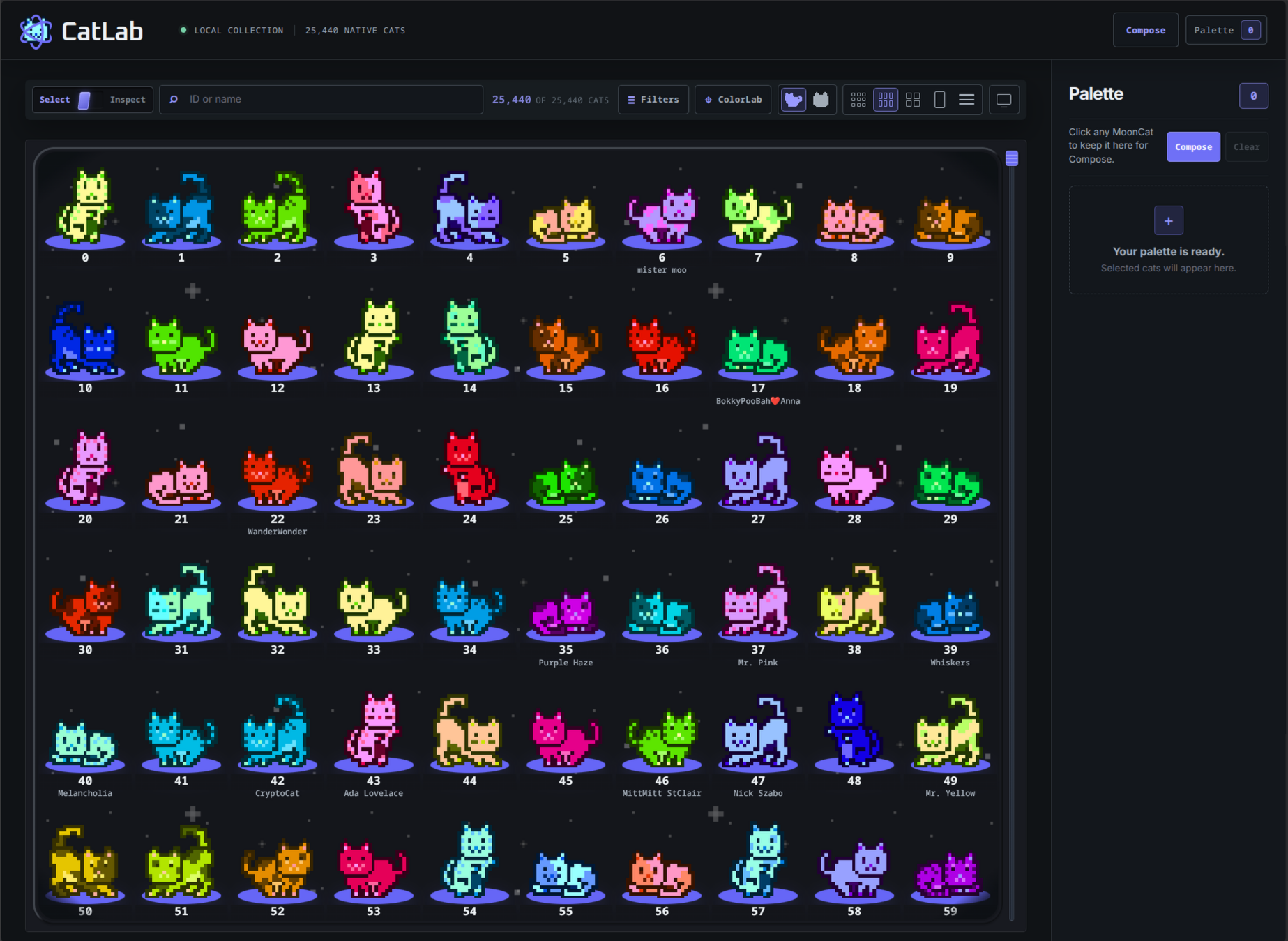
CatLab is a MoonCat collection browser and creative composition workspace. Find MoonCats, gather them in a Palette, build a scene with them, and save the result as a CatLab project or export it as an image.
Getting started
- Browse Collection, or search and filter for the cats you want.
- In Select mode, click or tap cats to add them to the Palette.
- Open Compose from the Palette.
- Arrange cats, text, rectangles, and an optional background.
- Save the project as
.catlab, or choose Export PNG for an image.
Collection
Collection lets you browse the full MoonCat catalog and work with the results without leaving the page.
- Search by rescue ID or MoonCat name.
- Open Filters to narrow the collection by coat/color, Character Cats, traits, naming status, rescue groups, and other available categories. Active filters appear above the results; remove individual filters or use Clear to return to the normal result set.
- Choose Compact, Details, or List. Compact offers Small, Medium, and Large grid sizes; List provides a horizontally scrollable table on narrow screens.
- Choose Full or Face art. Open Display effects to toggle AC rings, Stars, and Vignette where those options apply.
- In Select mode, clicking a MoonCat toggles it in the Palette. In Inspect mode, clicking a MoonCat opens its detail view instead.
Collection views identify cats by rescue ID, with names shown where available.
ColorLab
Open ColorLab from the Collection toolbar, then choose one of its example images or upload an image of your own. Click or tap a visible image color or MoonCat coat color to sample it. CatLab narrows Collection to MoonCats matching that hue. Use Clear color match to return to the normal Collection results.
Palette
Palette is the collection of cats selected from Collection. Remove individual cats with their remove control, or use Clear to empty the Palette. Compose uses the Palette as its source tray; removing a cat from Palette does not remove a cat that has already been placed in a composition.
Palette also has a local export panel. Select Full or Face art, PNG or WebP, and Small, Medium, or Large output, then download one image or a ZIP of the selected cats. Palette export accepts up to 10 cats at a time.
On a narrow screen, Palette opens as a drawer from the header.
Compose
Use the tools beside the canvas to Select / Move, add a Rectangle, add Text, or use the Eyedropper. Click or tap a placed layer to select it. Selected layers can be moved, resized, rotated, flipped, duplicated, given an opacity, and reordered with Back, Behind, Forward, and Front. Cat layers can switch between Full and Face art. Click or tap empty stage space to deselect the current layer.
The composition title in the action bar is editable. It supplies the default
name for .catlab saves and PNG exports, while each filename dialog still lets
you choose a different name for that download. Clear layers removes placed
objects and keeps the background.
Text
Choose Text to add a text layer. Double-click the text on the canvas for inline editing, or edit it in the Selected layer controls. Choose a font family, fill, outline color, outline width, and font size. Text layers also support the shared transform, opacity, flip, duplicate, and layer-order controls.
Rectangles
Choose Rectangle to add a rectangle layer. Change its fill and opacity, and resize it independently from other objects. Rectangles support the shared move, rotate, scale, flip, duplicate, and layer-order controls.
Backgrounds
Choose or replace a local background image from the Background panel or the empty stage. Remove it with Remove background. The image’s natural pixel dimensions determine PNG output dimensions; without a background, PNG export uses a transparent 1200×900 canvas.
Eyedropper
Select a rectangle or text layer, then choose the fill or outline color control and arm the Eyedropper. Click or tap the composition to sample the visible color at that point and apply it to the selected target. Press Escape or choose the tool again to cancel sampling.
CatLab’s internal stage eyedropper does not require browser-native EyeDropper support. On browsers that provide it, Shift-clicking a color-pick control can also use the optional native screen picker.
Compose keyboard shortcuts
These shortcuts apply when a layer is selected and focus is not in a form field.
| Key | Action | Context |
|---|---|---|
Delete or Backspace |
Remove the selected layer | Selected layer, not text editing |
← → ↑ ↓ |
Move the selected layer by a small step | Selected layer |
Shift + arrow key |
Move the selected layer by a larger step | Selected layer |
Ctrl/Cmd + D |
Duplicate the selected layer | Selected layer, not text editing |
Escape |
Cancel active eyedropper sampling | While sampling |
Escape |
Finish inline text editing | While editing text on the canvas |
Enter |
Confirm a Save or Export dialog | While a filename dialog is open |
Escape |
Cancel an open Save, Open-confirmation, or Export dialog | While a dialog is open |
Save, Open, and Export
.catlab projects
Compose Save writes a portable CatLab composition file with the .catlab
extension. It preserves placed cats, text, rectangles, transforms, and the
background. Uploaded local backgrounds are included in the saved file. The
composition title supplies the filename dialog’s default, and a custom Save
filename becomes the new title after a successful save.
Compose Open restores a saved composition and derives its title from the opened filename. If the current composition has layers or a background, CatLab asks before replacing it. Malformed or unsupported files, and files with an unusable background image, are rejected without partially applying them.
.catlab is the project format; it is not an image export. The editable
composition title is session/UI state and is not stored in the document itself.
PNG export
Choose Export PNG to render the current composition, then set the filename in the export dialog if needed. Changing the PNG filename does not rename the composition. Very large source images may exceed CatLab’s practical export size limit and will be refused rather than silently resized.
Mobile and touch
Collection adapts its toolbar, results, List scrolling, and Palette drawer for narrow screens. Compose supports pointer/touch selection and manipulation, and ColorLab supports tapping the sampler. Filename dialogs and the composition title remain editable with the on-screen keyboard; hover-only styling is not required for these controls.
State, reloads, and local files
Collection display preferences—view mode, compact grid size, AC rings, Stars,
and Vignette—are saved in this browser’s localStorage. Palette selections,
filters, ColorLab samples, and Compose layers/backgrounds are in-memory session
state. Reloading the page loses that work unless it was saved as a .catlab
file. The composition title is also session/UI state; opening a file restores a
title from its filename.
Catalog data, names, classifications, and atlas assets are served from the
built app’s local files. Image uploads and .catlab documents are read and
processed in the browser for these workflows; CatLab does not require sending
them to an application server.
Browser expectations
Use a current modern browser with Canvas, file inputs, Blob/object URLs and
downloads, ResizeObserver, and the HTML <dialog> element.
The internal Compose eyedropper works without native browser EyeDropper support. Native EyeDropper is optional where available.
Development
Setup
npm install
npm run generate -- --traits ../mckb/references/upstream/mooncatrescue/mooncat_traits.json
npm run generate:classifications
npm run validate:generated
npm run dev
The generator defaults to
../mckb/references/upstream/mooncatrescue/mooncat_traits.json when that sibling
file exists. Override it with --traits <path> or the CATLAB_TRAITS
environment variable. The input is read-only, and generation does not call a
MoonCat data or image API.
The repository includes generated runtime data under public/data/. Run the
generation commands when rebuilding or updating those artifacts. The normal
runtime and build consume the generated local files and do not require the
sibling repository after generation.
Commands
| Command | Purpose |
|---|---|
npm run dev |
Start the Vite development server. |
npm run generate -- --traits <path> |
Validate traits and generate the local catalog/index and atlases. |
npm run generate:classifications -- --source <path> |
Generate the compact classification artifact from CatMoon filter data. |
npm run validate:classifications |
Validate the classification artifact. |
npm run validate:generated |
Validate generated catalog, atlas, and classification artifacts. |
npm run check |
Run the TypeScript check. |
npm run build |
Build the static app with Vite. |
For structured QA scenarios, see TESTING.md.
Data and implementation notes
CatLab’s runtime uses the generated MoonCat index, atlas manifest, atlas sheets,
names, and classification artifacts already present under public/. The app
does not regenerate them during normal runtime or fetch remote image assets.
License
CatLab’s original project code and other original project material are licensed under the GNU General Public License v3.0 or later. Third-party and adapted materials are not automatically relicensed under GPL; see THIRD_PARTY_NOTICES.md for the current notices.
Attribution and notices
The catalog parser is the official mooncatparser 1.0.0 package. Its required
notice is preserved in THIRD_PARTY_NOTICES.md.
The Inspect Template Frame, template_full.png, Pixel Operator fonts, and
action icons are adapted from local CatMoon public assets and are kept as local
runtime assets with any applicable separate terms. The sibling CatMoon checkout
is not needed at runtime.